Japanese keyboards work in two separate layers: a JIS physical layout with kana printed on the keycaps, and a piece of software called an Input Method Editor (IME) that turns the letters you press into hiragana, katakana and kanji. The keyboard sends no Japanese at all. It is the IME doing the translating, which is why you can type Japanese on the keyboard you already own.
Last updated: October 2026
Table of Contents
- 1How Japanese Keyboards Work: A Quick Guide
- 2The two layers people mix up
- 3What Japanese people actually type at work
- 4What Is the Japanese Keyboard Layout?
- 5JIS, ISO, and Other Japanese Keyboard Standards
- 6The 109J keycap rabbit hole
- 7The @ and bracket problem
- 8How Does a Japanese Keyboard Produce Japanese Text?
- 9The three ways to type Japanese
- 10The four-step pipeline
- 11What romaji produces, in order
- 12Conversion keys that save time
- 13Flick input on phones
- 14Turning Japanese input on
- 15What Do the Japanese Keys and Symbols Mean?
- 16Common beginner mistakes
- 17Which Japanese Keyboard Is Best for Different Users?
- 18Typing Japanese at a desk every day
- 19Learning Japanese
- 20Gaming in Japan
- 21Travel and short stays
- 22Full-size, 75%, membrane, mechanical or wireless
- 23Frequently Asked Questions
- 24Do Japanese people use 12 key or QWERTY?
- 25What are the key differences between Japanese and American keyboards?
- 26How do I type hiragana on a Japanese keyboard?
- 27What are the special keys on a Japanese keyboard?
- 28How to type Japanese on US keyboard?
- 29Conclusion
How Japanese Keyboards Work: A Quick Guide
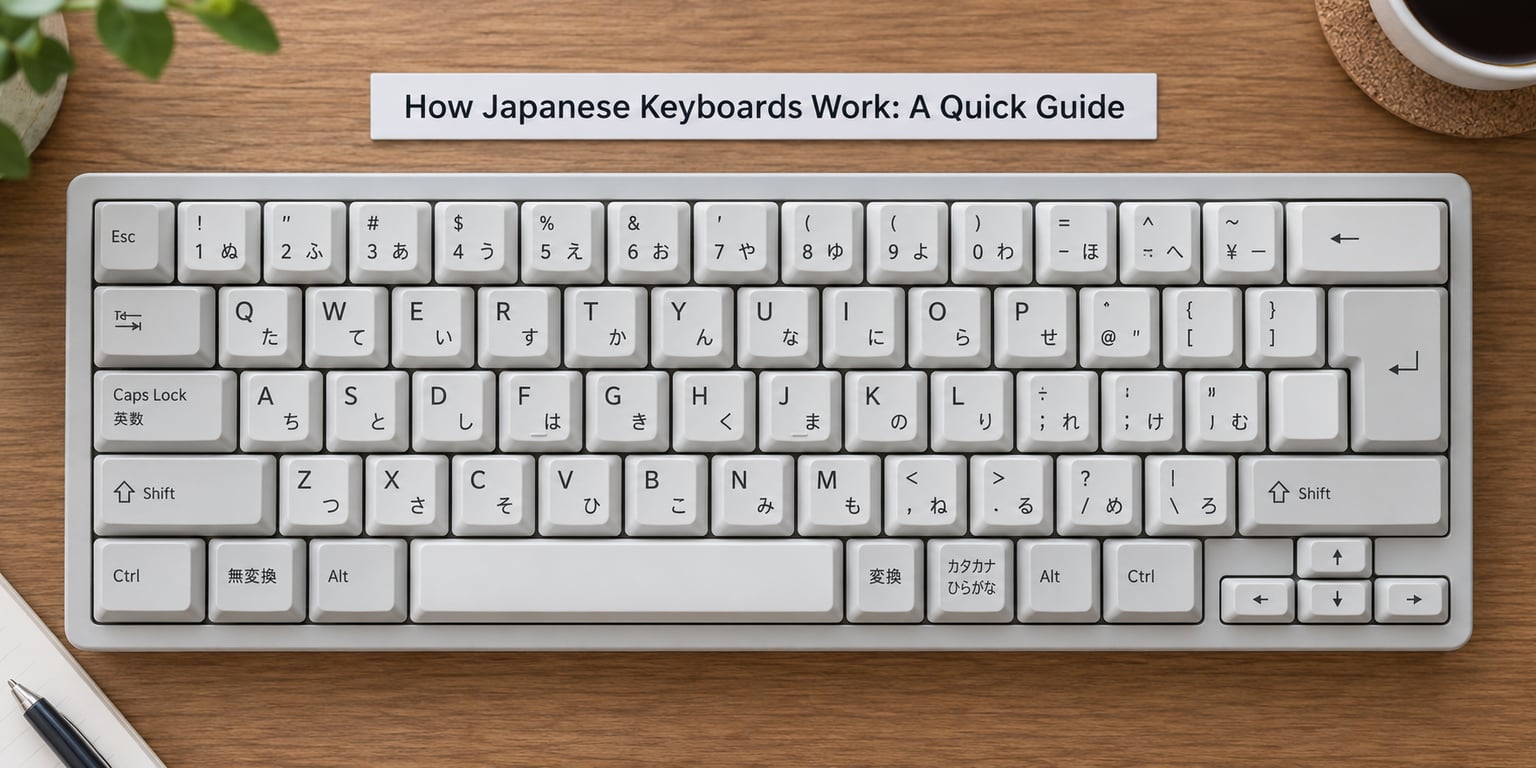
The short version: how Japanese keyboards work comes down to romaji, kana and kanji. You type romanized syllables such as ka, the IME converts them to か, and when you want a kanji character you press space to open a candidate list, pick one, and commit it with Enter. Nothing about the hardware is magic. The conversion is software.
That split explains almost every confusing thing people hit on a Japanese keyboard. It explains why the @ symbol is in the wrong place, why a beginner who mashes keys sees no kanji at all, and why the kana printed on every keycap is largely decorative for most of the people in the office.
| Layout | Letters | Symbols | Spacebar | Mode keys |
|---|---|---|---|---|
| JIS (Japanese standard) | QWERTY with kana sublegends | Yen key, dedicated @, [ and ] | Split, with mode keys either side | Five extra keys around the spacebar |
| ISO (European standard) | QWERTY, no kana printing | Fewer bracket keys, one tall Enter | One long bar | None |
| US-influenced, sold for Japanese use | QWERTY, kana sometimes printed | US positions kept for @ and [ | One long bar | Usually none |
The two layers people mix up
Ask someone what a Japanese keyboard is and they will usually describe the legends on the keycaps. Ask a Japanese typist and they will describe an IME. Both are describing part of the same setup, and confusing the two is the single biggest source of wasted troubleshooting time.
The hardware layer is the JIS layout: which physical key sends which character code, where the yen sign sits, how wide the spacebar is. The software layer is the IME: the program that reads what you typed and decides what Japanese character to show. You can swap the software and keep the board. You can keep the software and swap the board. They are independent.
What Japanese people actually type at work
Most Japanese office workers type romaji, not kana, and they use a full-size QWERTY board rather than a 12-key phone keypad. Learners post on r/LearnJapanese asking whether they should buy a Japanese keyboard, and the answer from people who type all day is consistently that the kana sublegends are close to decorative. Romaji is faster for anyone who already touch-types in English.
That said, plenty of people do use the kana keys. It is a matter of habit, generation and whether someone learned to type before or after touch typing became normal. A keyboard with kana printed on it is also the clearest visual reminder that the letters you are pressing are going to be rearranged on screen.
What Is the Japanese Keyboard Layout?
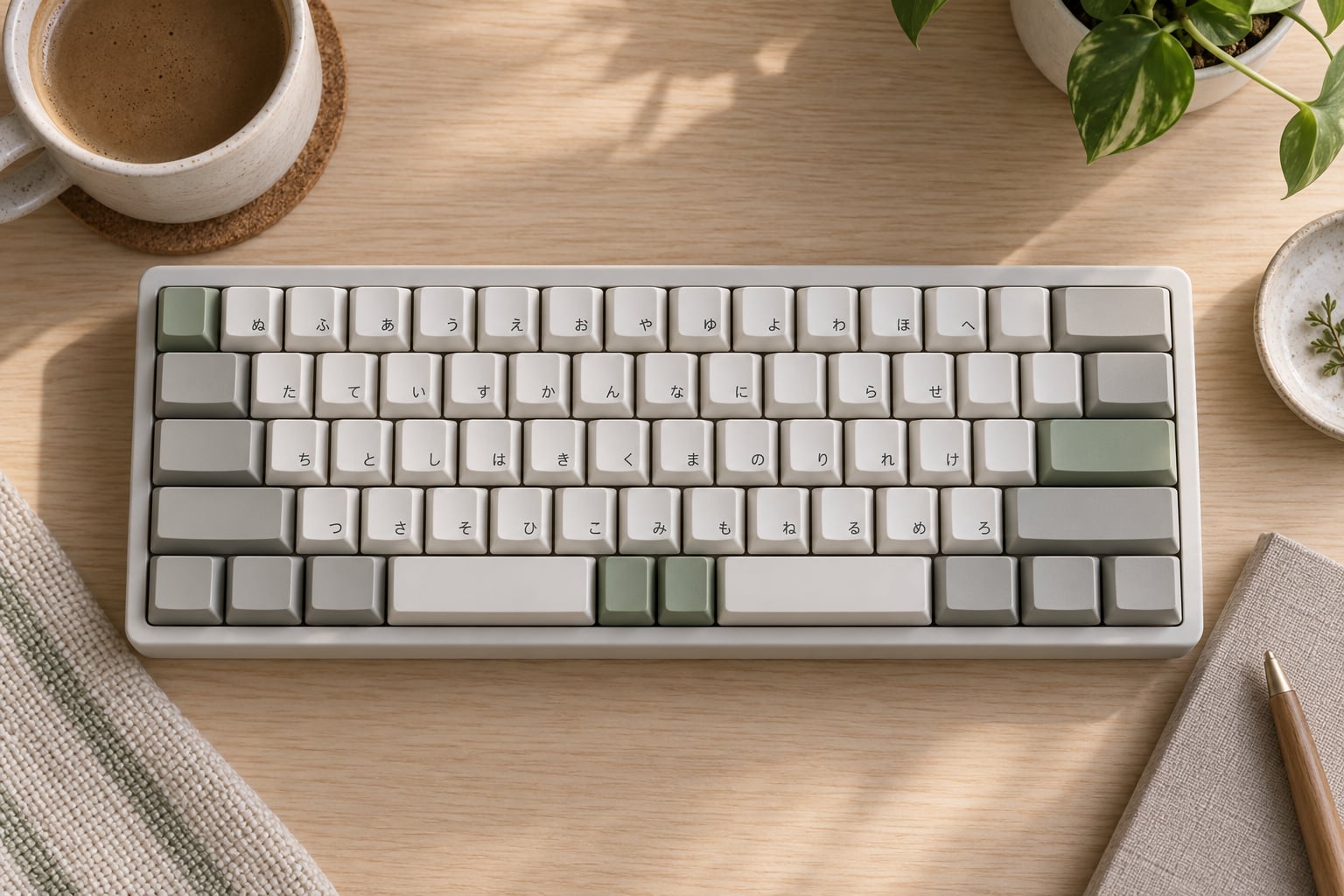
A Japanese keyboard is a JIS-layout keyboard whose keys carry hiragana sublegends and whose extra keys control an Input Method Editor, the software layer that converts the roman letters you physically type into hiragana, katakana and kanji.
The letters are in the QWERTY order you already know. The kana printed in the corner of each keycap is a label, not a character the key produces on its own. If you press K on a JIS board with romaji input active and no IME running, you get a k. The か on the cap is there so you can learn the mapping and use the kana mode when you want it.
What actually differs from a US keyboard is everything around the letters. The yen sign has its own key, the @ sign has its own key, the bracket keys are present but positioned differently, and the spacebar area is crowded with five extra keys. A JIS Return key is tall, and the board has a dedicated Alt key near the spacebar that US layouts do not have.
JIS, ISO, and Other Japanese Keyboard Standards
JIS is the standard Japanese keyboards are built to, and it is the one that shows up in offices, classrooms and net cafes. ISO is the European layout, which trades a few keys for a differently shaped Return. Boards described as US-influenced or ANSI keep American symbol positions and sometimes bolt kana keycaps on top, which is the compromise most import brands actually ship.
JIS is published as a Japanese Industrial Standard covering the character set and the key arrangement. Keycap sets come in two flavours that people argue about endlessly: 109, which assumes a US base, and 109J, which is shaped to fit a JIS board. Buy the wrong set and the legends and key sizes will not line up.
| Key | US layout | JIS layout |
|---|---|---|
| @ | Shift and 2 | Dedicated key beside P |
| 2 | @ on Shift | " on Shift |
| ^ | Shift and 6 | Dedicated key on the number row |
| Yen | No dedicated key | Own key on the number row |
| Backslash | Dedicated key above Return | Moved beside the slash key |
| Return | Tall, two rows | Tall, two rows, shifted along |
| Alt | No key beside the spacebar | Dedicated key beside the spacebar |
| Spacebar | One long piece | Split, flanked by mode keys |
The 109J keycap rabbit hole
Keycap sets sold for Japanese use split into 109 and 109J. A 109 set is sized for a US board, with Enter in one row and a shorter spacebar. A 109J set is sized for JIS, with the tall two-row Return, the split spacebar and the extra keys around it. They are not interchangeable, and the mismatch is visible in the bottom-left corner of the keyboard before you even install anything.
The @ and bracket problem
This is the problem that generates the most forum posts. Your muscle memory says @ lives on the 2 key, so you press Shift and 2 on a JIS board and get a double quote instead. Meanwhile the key where you expect @ has Shift and backtick. Square brackets move too, so code editors and terminal work on a JIS board requires deliberate relearning. The layout is not broken. You are just typing a US board from memory.
How Does a Japanese Keyboard Produce Japanese Text?
Pressing a key and producing a Japanese character are two different events. The keyboard sends a character code to the operating system, and the IME decides what to display. When romaji input is active, those codes are read as syllables and converted to kana on the fly.
The three ways to type Japanese
| Method | Where | How it works | Best for |
|---|---|---|---|
| Romaji | Any QWERTY board | Type ka, IME shows か | Anyone who already touch-types |
| Direct kana | JIS board, kana mode | Press K, key emits か directly | People who learned kana on a real board |
| Flick on 10 keys | Phone keypads | Tap or swipe a 12-key grid | One-handed typing, standing up |
The four-step pipeline
Every piece of Japanese you produce follows the same four steps, whether you type one word or a full email.
- You type romaji. The IME shows a pre-conversion string of hiragana, and it updates as you go.
- You press the spacebar. A candidate list of kanji combinations opens, with the most likely reading highlighted.
- You press space or the arrow keys to move through the list. Right arrow selects the highlighted candidate as text.
- You press Enter to commit. The kanji lands in the document and the IME resets to a fresh start.
The part that trips up beginners is step two. The keyboard is not broken while a candidate list is open. You are not typing kanji, you are choosing kanji, and choosing means looking before you press Enter. Pressing Enter straight away is how you end up with a perfectly spelled, completely wrong word.
What romaji produces, in order
| You type | You get | Note |
|---|---|---|
| ka, ki, ku, ke, ko | か き く け こ | Basic a-row through o-row |
| sa, shi, su, se, so | さ し す せ そ | Shi, not si |
| cha, chu, cho | ちゃ ちゅ ちょ | Two letters, one syllable |
| nn | ん | Also just n at the end of a word |
| kk | っk | Double a consonant for small tsu |
| ka then + | が | Plus adds the dakuten mark |
| na ni nu ne no | な に ぬ ね の | The n key alone makes ん |
Long vowels come out as a doubled vowel or a hyphen, so raamen or raa-men both give you ラーメン. Loanwords in katakana are the easiest Japanese to type, because you type the sound in romaji and press a conversion key.
Conversion keys that save time
The number row does most of the converting, and these work by default in the Japanese IMEs on Windows.
| Key | Converts to | Typical use |
|---|---|---|
| F6 | Hiragana | Back to plain kana |
| F7 | Full-width katakana | Program names, abbreviations |
| F8 | Half-width katakana | Rarely, and often by accident |
| F9 | Full-width alphanumeric | Full-width numbers and Latin |
| F10 | Half-width alphanumeric | Ordinary Latin and digits |
Shortcuts vary a little between the Microsoft IME and Google Japanese Input, and macOS binds them differently again, so check your own settings if F7 does nothing. The most-used one by far is katakana conversion.
Flick input on phones
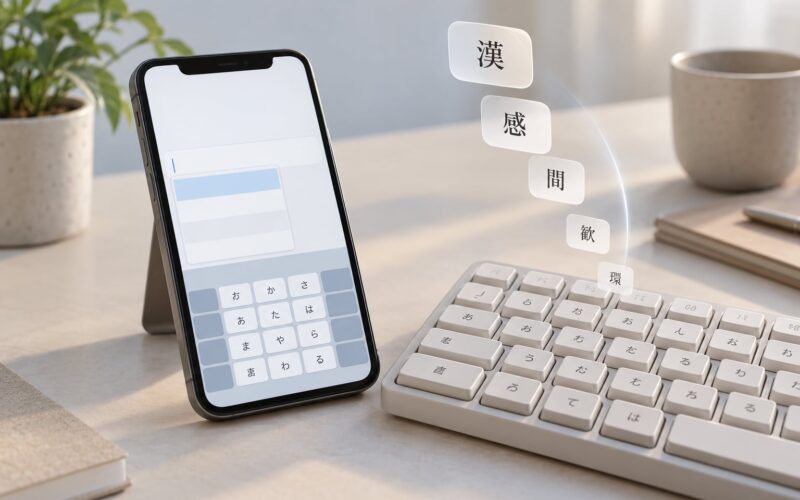
On a 12-key phone keypad each key covers five kana. Tap the か key and you get か. Flick up and you get き, flick across and you get く, flick down and you get け. The same gesture pattern works on every column, which is what makes it learnable in a day or two.
It is genuinely fast for one-handed use and genuinely slower than a real keyboard for long sentences. Plenty of learners adopt it on the phone and then go back to romaji on a laptop, which is the most common pattern I see in study forums.
Turning Japanese input on
| System | Japanese input option | How to switch modes |
|---|---|---|
| Windows | Microsoft IME (Japanese) or Google Japanese Input | Win key and Space, or Alt and Shift |
| macOS | Japanese input sources, Kana and Romaji | Control and Space, or the menu bar flag |
| iOS and iPadOS | Japanese Romaji Kana, or a 10-key flick keyboard | Globe key, then tap あ |
| Android | AOSP Japanese keyboard or Google Japanese Input | The keyboard switcher key |
| Linux | Fcitx with Mozc, or IBus with Mozc | Your desktop shortcut, often Super and Space |
Windows 11 and current macOS installs include Japanese input out of the box, so nothing needs downloading. The common complaint is that the shortcut is not switched on, so people click the language icon manually every single time. Fix the shortcut once and the problem disappears for good.
What Do the Japanese Keys and Symbols Mean?
Five extra keys sit around the split spacebar on a JIS board, and their legends describe modes rather than characters. Getting these straight is most of what a newcomer notices on day one.
- Hiragana / Katakana / Romaji key, printed ひらがな and カタカナ. Press it to switch the letter keys between producing kana and producing Latin characters.
- Muhenkan, printed 無変換, meaning no conversion. Press it after typing romaji and the text passes through as typed, with no kanji conversion attempted.
- Henkan, printed 変換, meaning conversion. Press it to open the next candidate list, and press it again to widen the search across the whole sentence.
- Zenkaku and Hankaku, the full-width and half-width key. It flips Latin characters, digits and punctuation between full-width and half-width forms.
- Alt and kana shift variants on some boards, which multiply what the keys above can do.
Elsewhere on the board the symbols are the opposite: they are punctuation and symbols, and the yen key is a real character rather than a mode. A small indicator in the corner of the screen shows the current mode, usually A for alphanumeric, あ for hiragana, or ア for half-width katakana.
Common beginner mistakes
Four things cause nearly all of the frustration reported by new users. First, half-width katakana mode: something toggles the width setting, and text comes out as ハンカク instead of ハンカク until you press the width key again. Second, pressing Enter while the candidate list is open, which commits a reading you never chose.
Third, Caps Lock. The IME reads capital letters as a different mode request, so a stray Caps Lock turn makes romaji typing silently misbehave. Fourth, autocorrect. A phone keyboard that capitalises the first romaji letter or turns a word into something else will break the conversion, which is a good reason to turn autocorrect off for Japanese input.
Which Japanese Keyboard Is Best for Different Users?
For most people the answer is that you do not need one yet. A US or international keyboard plus a Japanese IME already types Japanese properly, and no amount of kana printing changes the output. Buy hardware when a specific thing in your life calls for it.
Typing Japanese at a desk every day
A JIS board with a full-size layout is the right pick if you work in Japanese for hours, because you get the yen key, real @ and bracket keys, and a Return and spacebar arrangement that matches what your colleagues and every Japanese software shortcut assume. Software shortcuts, macros and snippet tools are all written for JIS, and power users report real breakage when those tools run on the wrong layout.
Learning Japanese
Do not buy one. The r/LearnJapanese consensus is that romaji on a familiar keyboard is faster for beginners because you already know where every letter is, and the printed kana help you read the sublegends rather than type on them. If you want the kana as a reading aid while studying, keycap stickers or a printed chart do the same job for far less.
Gaming in Japan
Buy a JIS board with standard bottom-row modifiers, ANSI-style keys and no extra spacing, and use JIS keycaps on it. Most games sold in Japan expect the Japanese layout, and local servers or region-locked titles are the clearest reason to make the switch. Avoid novelty layouts with an extra key column if you also play on a normal board.
Travel and short stays
Nothing. A phone with a flick keyboard covers a two-week trip, and your laptop keyboard types Japanese through the IME it already has installed. A wireless JIS board is only worth carrying if you are typing at a desk for weeks, not sightseeing.
Full-size, 75%, membrane, mechanical or wireless
These are separate decisions from the layout. Membrane boards are cheaper, quieter and fine for a text-heavy job. Mechanical boards suit long sessions and give a clearer feel for the conversion keys you will press constantly. A 75% layout saves desk space and usually keeps the arrow keys and the five JIS mode keys, but check before buying because some drop one or both.
Wireless is worth it for a travel board and irrelevant otherwise. A wired board is cheaper, has no battery to forget, and the cable keeps the board at a fixed angle, which matters more than most buyers expect for a board you use all day.
Frequently Asked Questions
Do Japanese people use 12 key or QWERTY?
Most Japanese people use a full-size QWERTY board with romaji input, not a 12-key phone keypad. Typing on a QWERTY board is much faster for long sentences, so office work and messaging use romaji. The 12-key flick layout is mostly used on phones, and often by people who learned Japanese typing on a phone in the first place. Both methods produce the same text; only the speed and the learning curve differ.
What are the key differences between Japanese and American keyboards?
A JIS board keeps the same QWERTY letter order but changes the symbols around it. The yen sign gets its own key, @ and the bracket keys move to different positions, ^ gets a dedicated key, and the spacebar splits into two with five extra mode keys around it. There is also a dedicated Alt key beside the spacebar. Return is tall on both, but sits further along on JIS. Keycap sets differ too: 109J fits JIS, 109 fits US.
How do I type hiragana on a Japanese keyboard?
Switch the board into kana mode with the ひらがな and カタカナ key, then press the letter key that carries the kana you want. Alternatively, leave the board in romaji mode and type the syllable instead: ka becomes か, shi becomes し, and n becomes ん. Romaji is the easier route for beginners because the letters match the keys you already know. Pressing the spacebar afterwards opens a kanji candidate list.
What are the special keys on a Japanese keyboard?
Five keys cluster around the split spacebar. The ひらがな and カタカナ key switches the letter keys between kana and Latin characters. 無変換 (Muhenkan) passes typed text through without attempting conversion. 変換 (Henkan) opens the next candidate list and widens the search on a second press. A full-width and half-width key flips Latin text and punctuation between the two widths. Some boards add a second kana key and an Alt key.
How to type Japanese on US keyboard?
Add a Japanese input method to your operating system, then type romaji. On Windows, choose Japanese from the language menu and install Microsoft IME or Google Japanese Input. On macOS, add Japanese input sources in Keyboard settings. The conversion pipeline is identical: type ka for か, press space for kanji candidates, choose one, press Enter. Nothing about romaji input depends on the keycaps, so a JIS board is never required.
Conclusion
A Japanese keyboard is a physical layout plus an input system, and keeping those apart explains everything people find strange about them. The layout decides which key sends which character code. The IME decides what Japanese that code becomes. You are not typing kanji, you are choosing kanji from a candidate list, and the kana on the keycaps are a reading aid more than a typing method.
Start by looking at your current board: if the @ sign is on the 2 key, you have a US layout and you can already type Japanese through the IME. Only look at JIS hardware when something in your day needs it, such as Japanese-language gaming or a full-time desk job where JIS shortcuts start to matter.