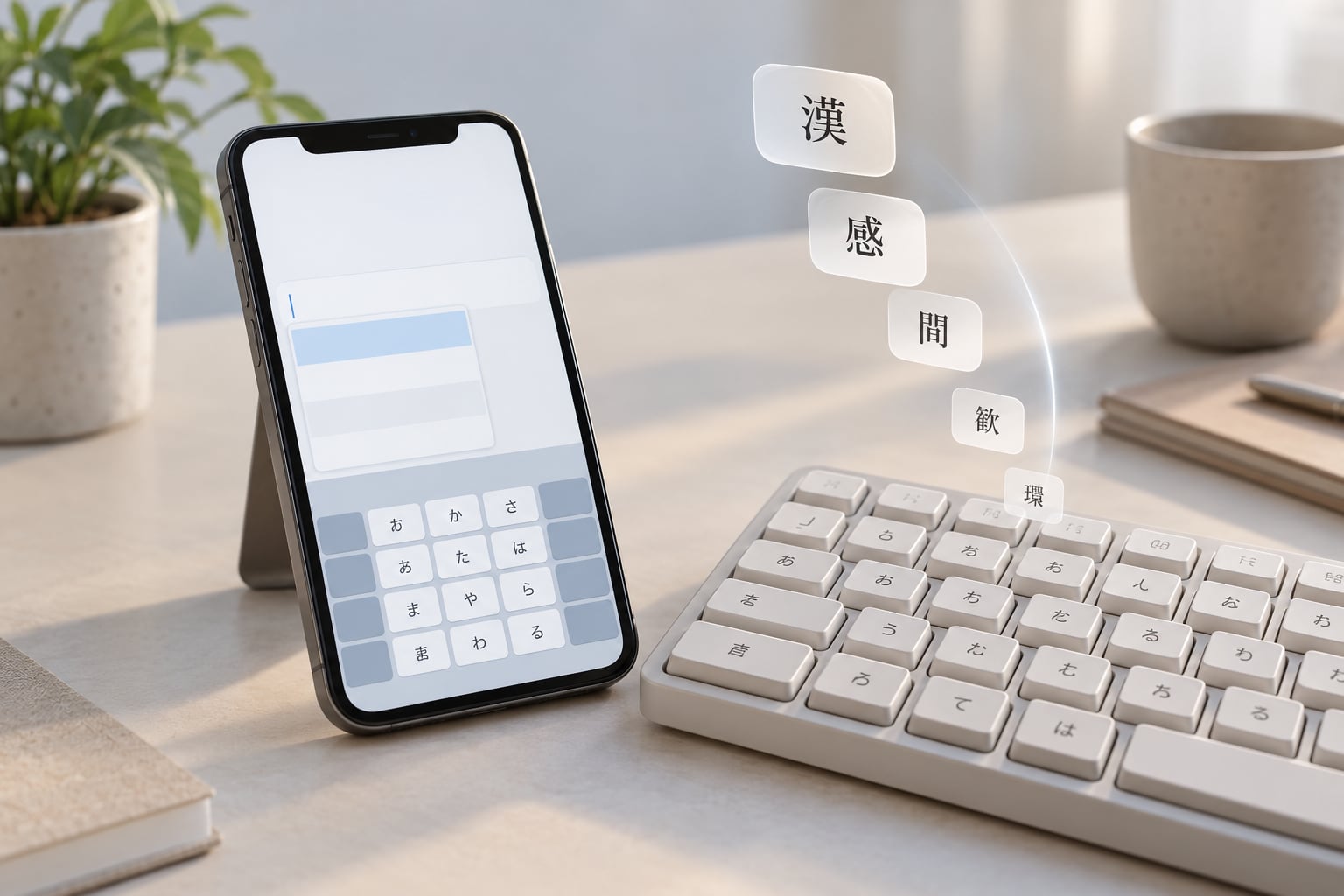
Japanese predictive text is the suggestion layer that sits on top of a Japanese input method editor, or IME. You type roman letters, the IME turns them into kana, then a candidate window offers kanji spellings and predicted next words based on the dictionary and on what you have typed and picked before. Understanding how predictive text works in Japanese means knowing which of those two jobs you are actually looking at.
If you have watched a Japanese speaker text on a phone and seen kanji appear almost before the word is finished, that speed is not a typing trick. It is a language model ranking candidates in real time. Here is how the whole thing fits together, and why it sometimes gets your name wrong.
Table of Contents
- 1What Is Predictive Text in Japanese?
- 2How Predictive Text Works in Japanese
- 3What Happens When You Type a Japanese Word?
- 4Kana-to-Kanji Conversion vs. Predictive Suggestions
- 5How Does a Japanese Keyboard Learn Your Vocabulary?
- 6What Do Cloud and On-Device Prediction Do Differently?
- 7How Predictive Text Differs on iPhone, Android, and Japanese Services
- 8How to Control Suggestions and Protect Your Privacy
- 9Why Does Japanese Predictive Text Suggest the Wrong Kanji?
- 10Frequently Asked Questions
- 11Does Japanese predictive text convert kana into kanji automatically?
- 12Why does predictive text keep giving me the wrong kanji for the same word?
- 13Can a Japanese keyboard learn words I use frequently?
- 14Is Japanese predictive text available when my phone is offline?
- 15How does predictive text work in Japanese compared with English?
- 16Conclusion
What Is Predictive Text in Japanese?
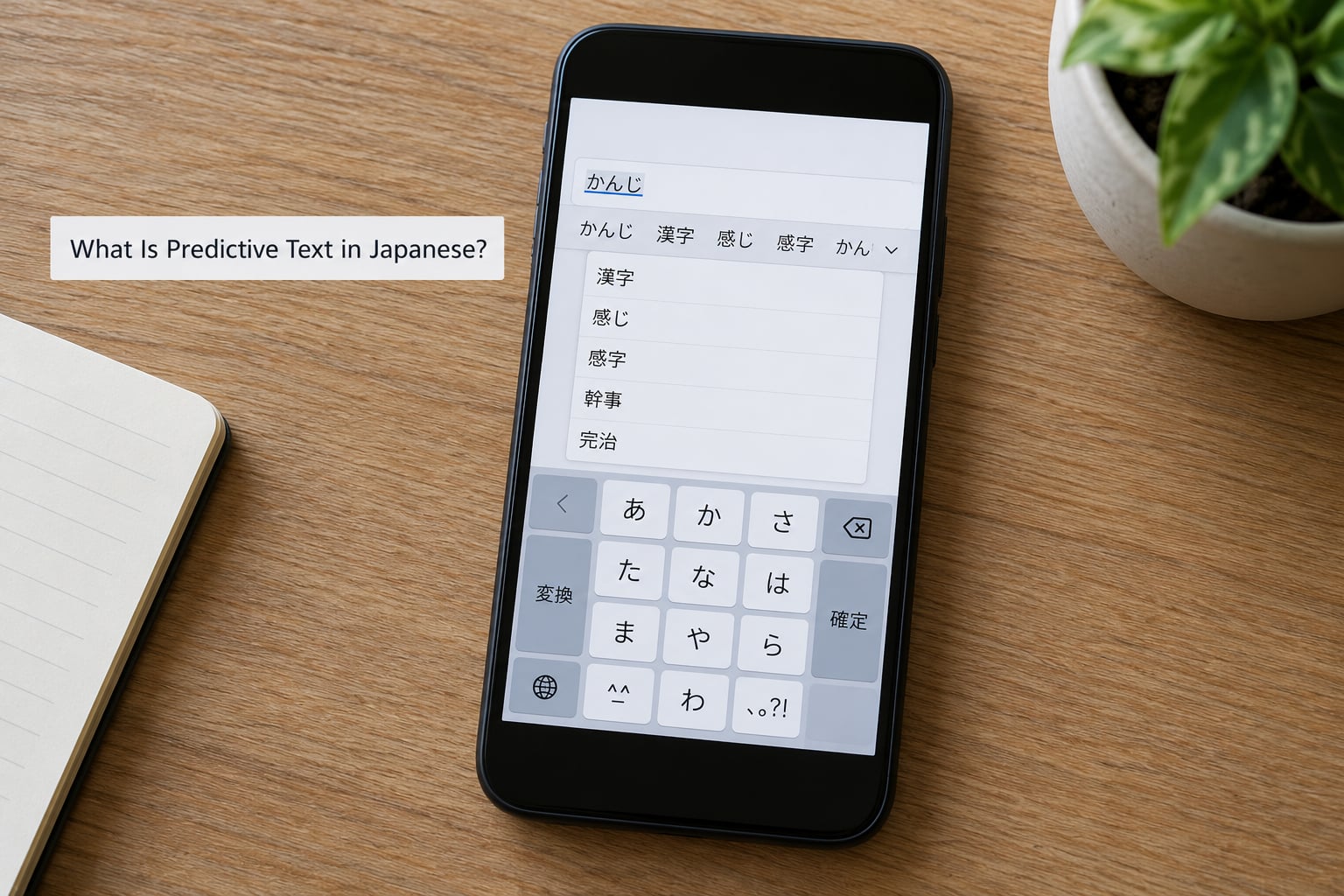
Three different jobs get lumped together under the phrase predictive text, and separating them is the fastest way to understand what your keyboard is doing.
- IME conversion turns the kana you typed into a kanji spelling. You choose from a candidate window, and your choice commits the text.
- Predictive candidates offer likely completions of what you have already typed, often as a suggestion strip above the keyboard.
- Auto-correction silently replaces something you committed with what the engine thinks you meant.
Only the middle one is prediction. The first is conversion, and it happens whether prediction is switched on or not. This distinction matters because conversion errors feel like a broken keyboard, while prediction errors feel like a keyboard that second-guesses you.
The whole system is sometimes called an IME, sometimes a Japanese input method, and in everyday Japanese usage simply the keyboard. There is no separate Japanese term for the prediction layer alone, which is part of why English speakers end up searching for it.
How Predictive Text Works in Japanese
It runs in four steps, and each one can be observed happening on screen.
- Romaji to kana. Each letter you press maps to a kana through a fixed table, so k becomes か, ky becomes きょ. This happens instantly and needs no dictionary.
- Segmentation. The engine works out how the unbroken kana string breaks into words. Japanese has no spaces, so this is genuine analysis.
- Kanji candidates. Each word is looked up in dictionaries to produce every kanji spelling with a matching reading. These appear in the candidate window.
- Ranking and prediction. The candidates are ordered by frequency, context, and your own selection history, and likely next words appear in the suggestion strip.
Roughly speaking, the engine leans on four signals: how common a word is, how well it fits the surrounding sentence, what dictionaries allow, and what you personally chose last time. A term you pick twice will often jump to the top of the list, which is useful until it becomes a habit the engine keeps reinforcing.
What Happens When You Type a Japanese Word?
Say you want to type 今日, today. You press k, y, o, u.
The IME resolves each letter immediately and the composing text shows きょう in hiragana with an underline, which is the visual signal that a conversion is still pending. The candidate window then offers readings such as 今日, 教 or 橋, all of which can be read きょう in different contexts, depending on the dictionary and on the surrounding words already in the field.
If you accept the first candidate, 今日 is committed and the underline disappears. From that point the engine predicts what usually follows 今日 in your current context, and that prediction is drawn partly from general usage and partly from sentences you have typed in that same app before. Choose the wrong candidate once and the suggestion strip will happily offer you that reading again next time.
Type kyou in an empty message and you will mostly see 今日. Type it after 昨日 and the ranking shifts, because yesterday and today naturally travel together in Japanese.
Kana-to-Kanji Conversion vs. Predictive Suggestions
Here is the same typed input at three moments, showing why you can see several lists at once and get confused about which one is doing what.
| Moment | What you see | What it is |
|---|---|---|
| While typing kyou | きょう with an underline | Raw kana, not yet converted |
| Candidate window | 今日, 京, きょう conversions of the whole word | Conversion candidates for what you typed |
| Suggestion strip | は, です, に after you commit | Prediction of the next word or phrase |
The candidate window answers a different question than the suggestion strip. The window asks which kanji spelling fits the kana you already typed. The strip asks what you are likely to type next, and it can include text that is not in the field at all yet.
Three quick tests tell them apart. Pressing the space bar cycles conversion candidates, which means the window is conversion. Tapping a suggestion inserts text you did not type, which means that is prediction. And if switching prediction off in settings leaves your kanji choices intact, you have just proved the two layers are separate.
How Does a Japanese Keyboard Learn Your Vocabulary?
A Japanese keyboard builds a personal vocabulary in a few layers, and it is worth knowing which one is misbehaving before you start resetting things.
- User dictionary. Entries you add yourself, with a romaji trigger and the exact output you want. A company name, a product code, or a reading that never resolves correctly.
- Selection history. Candidates you pick are remembered, and a repeated pick is promoted higher the next time. Apple documentation describes predictive candidates as based on what you previously typed and selected.
- Text replacement and abbreviations. Short triggers that expand into whole phrases or addresses.
- Recent and per-app frequency. Words you use in a specific app often rank higher inside that app.
Not every keyboard uploads every keystroke, and privacy practices differ sharply between the built-in Apple and Google keyboards and third-party ones that request full access. That distinction is covered below.
A practical starter set for a user dictionary covers the things that defeat conversion every time: your own name and reading, a partner’s name, your company, your team, a neighbourhood, and any jargon that only exists at work. Ten entries takes a few minutes and saves far more than it costs.
What Do Cloud and On-Device Prediction Do Differently?
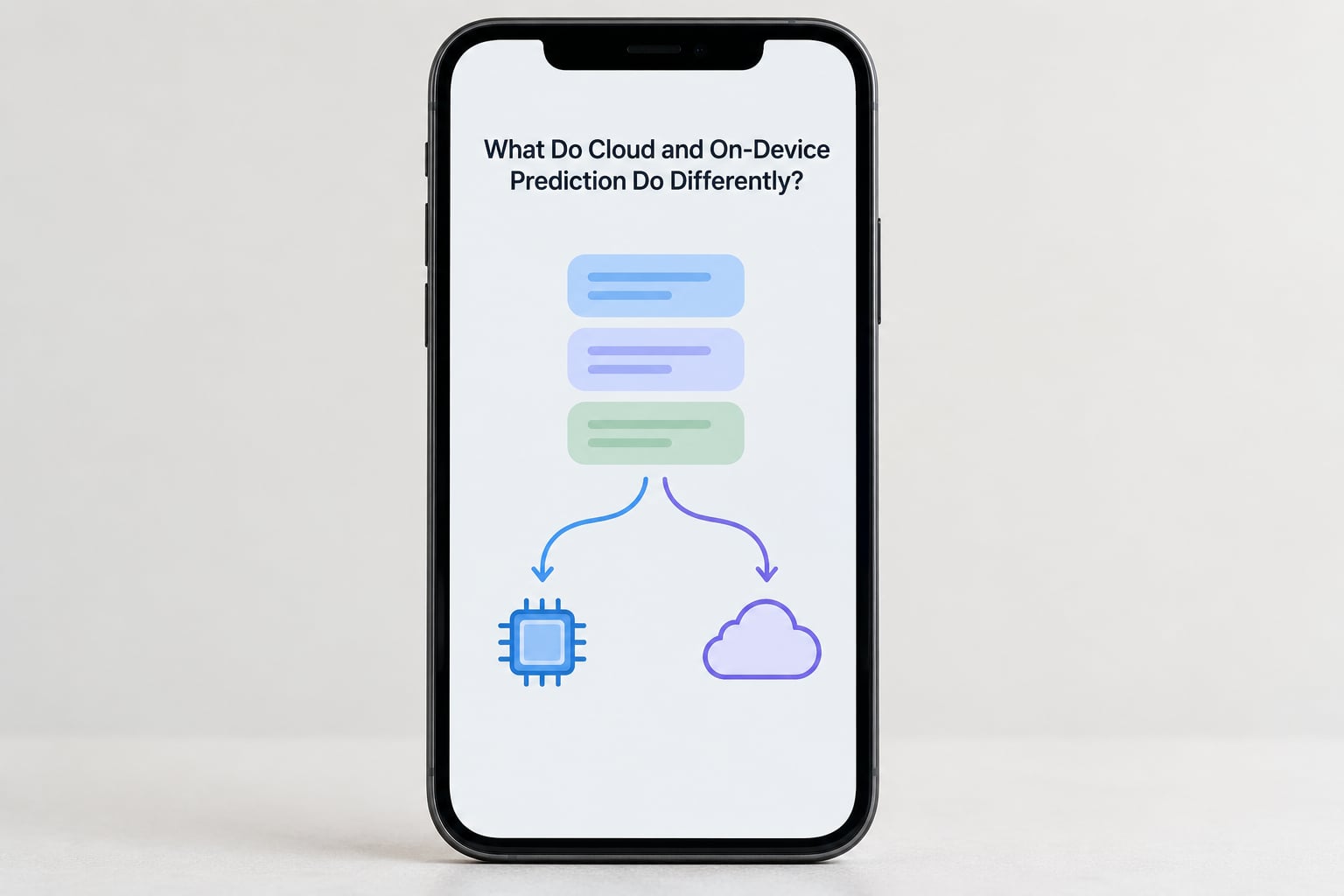
On-device prediction runs entirely on the phone. It works on a plane, in a basement, on a spotty rural connection, and it responds in milliseconds. Cloud prediction sends what you are typing to a server, gets back candidates, and generally handles longer context and rarer vocabulary better because the model and dictionaries are far larger.
The tradeoffs are straightforward. Offline, you get local results or nothing. Online, you may get better suggestions but you have handed something to a remote service. Behavior varies by keyboard and service, so the honest answer to how much data leaves your phone is: it depends entirely on which keyboard you installed.
This is why third-party keyboards asking for full access worry people. Forum users describe granting it as selling your soul, and they are not exaggerating about what it technically enables. The built-in keyboards on iOS and Android are the lower-risk option for Japanese typing specifically, because you need the kana IME and most third-party keyboards do not provide one.
How Predictive Text Differs on iPhone, Android, and Japanese Services
The pipeline is the same everywhere. What changes is which layer you can reach, how the candidates look, and how much you can teach the engine.
| Platform | Candidate display | Personal learning | Notable difference |
|---|---|---|---|
| iOS and iPadOS | Candidate window plus a predictive text strip above the keyboard | User dictionary, text replacement, selection history | Tight integration with system dictation and Shortcuts |
| Android with Gboard | Suggestion strip, optional Japanese conversion candidates | Personal dictionary, learned suggestions | Swipe typing plus flick-style kana options depending on layout |
| macOS Japanese input source | Floating candidate window you can reposition and resize | User dictionary and selection history | Option to show predictive candidates explicitly |
| Windows Japanese IME | Candidate window with a learning history list | User dictionary plus per-user learning history | Learning history has to be reset from a settings panel |
| Third-party Japanese IMEs | Varies; often a richer candidate list with sorting options | Usually the deepest customisation available | Often require full access, so weigh the privacy cost |
On phones the practical difference is the strip. On desktop the practical difference is the window, which you can move out of the way of the text you are editing. Menu names shift between releases, so treat the paths below as a starting point and confirm the labels on your own version.
How to Control Suggestions and Protect Your Privacy
On iPhone and iPad, the relevant settings sit under Settings, then General, then Keyboard, then Keyboards, then Japanese. Inside that entry you will find the predictive text toggle, the Auto-Correction toggle, and the edit button next to Japanese that opens learning, user dictionaries, and text replacement. On newer versions some of these appear under Keyboards and then Predictive or Auto-Correction instead, so look for both.
To add an entry, open Keyboards, tap Edit, tap Japanese, then Add New Shortcut and Text. Enter the romaji trigger on the left, the exact Japanese output on the right, and leave the reading field empty if you never want the engine to reinterpret the word. For a shortcut that should expand into a phrase rather than convert, text replacement in Settings, General, Keyboard, Text Replacement does the job.
On Android, open Settings, then System, then Languages and input, then the on-screen keyboard settings for the keyboard you use. You will find personal dictionary entries and learning controls there. Google keyboards also let you review and delete learned suggestions directly from the keyboard’s own settings screen, which is the fastest fix for a phrase stuck on the wrong reading.
On macOS, use System Settings, then Keyboard, then Text Input, then Edit to reach Input Sources, and open the Options for Japanese to switch predictive candidates on or off. On Windows, the language bar opens Settings for Time and Language, and the Japanese IME options include a Learning History section you can clear when the engine keeps repeating a wrong candidate.
Two habits are worth keeping. Check full access permissions for any third-party keyboard by opening Settings and looking at the keyboards list, and re-check the learning settings after every major iOS or Android update, since features sometimes move or reset.
Why Does Japanese Predictive Text Suggest the Wrong Kanji?
Wrong-kanji frustration comes up constantly in Japanese language communities, and the causes are mostly predictable once you know them.
- Ambiguous readings. One kana reading maps to dozens of kanji spellings, and without context the engine simply guesses. A short reading like きょう maps to many unrelated spellings.
- Too little context. A single word typed in an empty field has nothing to rank against, so the most frequent candidate wins, which is often wrong for what you meant.
- Names and jargon. Personal names and technical terms may not be in the dictionary at all, so the engine offers the nearest common word instead.
- Reinforced wrong choices. Pick a wrong candidate once and it moves up. Pick it twice and it can become the default for that reading. This is the reason a bad suggestion seems to get stuck.
- Limited context window. Phone keyboards weigh a short window of surrounding text, so a sentence that depends on something typed ten characters earlier gets ranked poorly.
Each has a fix. Lengthen the sentence so there is more context, add the word to your user dictionary, correct the wrong pick immediately so the ranking resets, or commit the kana and convert manually when a rare word comes up.
A useful habit for learners is to leave unfamiliar words in kana until you have seen them repeatedly. For native users, the fastest recovery is the opposite: a user dictionary entry with your exact intended spelling beats any amount of re-converting.
Frequently Asked Questions
Does Japanese predictive text convert kana into kanji automatically?
Not by default. Conversion to kanji is a separate step you trigger, usually with the space bar, which cycles candidates in the candidate window and then commits one. Predictive text is the other layer, offering likely next words in a strip above the keyboard. You can leave prediction on or off and kanji conversion still works the same way, which is the quickest way to tell the two features apart.
Why does predictive text keep giving me the wrong kanji for the same word?
Because the engine ranks candidates and remembers your picks. If you accept a wrong candidate once it moves up the list, and accepting it twice can make it the default for that reading. Reset the learning history in the keyboard settings, or better, add the word to your user dictionary with the exact kanji you want so it stops guessing.
Can a Japanese keyboard learn words I use frequently?
Yes, and most people underestimate this. The built-in keyboards remember your selections, keep a user dictionary for exact entries, and offer text replacement for phrases you type often. Add your name, your company, and your job jargon first, since those are the entries that fail most often. You can review and clear what the keyboard has learned in its settings at any time.
Is Japanese predictive text available when my phone is offline?
With the built-in iOS and Google keyboards, yes. Conversion, candidate selection and prediction all run on the device, so everything described here works on a plane or with data switched off. Cloud-based prediction and any third-party keyboard that requests full access may behave differently or need a connection, so check the keyboard you actually use before you rely on it.
How does predictive text work in Japanese compared with English?
English predictive text completes words for you because words are separated by spaces. Japanese has no spaces, so the IME must also decide where words begin and which kanji spelling matches the kana you typed. That is why Japanese keyboards show a candidate window at all, and why wrong kanji is such a common complaint compared with the wrong word in English.
Conclusion
Japanese predictive text is a four-step machine: romaji becomes kana, the kana string gets segmented, dictionaries produce kanji candidates, and a ranking model orders them using frequency, context and your own past selections. Everything above the kana layer is prediction, and everything in the candidate window is conversion.
Start with one small test. Type kyou into a message, watch the kana appear, cycle the candidates with the space bar, then check the prediction toggle in your keyboard settings. Once you can see those two layers move independently, the wrong-kanji problem usually turns into a one-tap fix.