Typing kana is straightforward: one keystroke, one character, no ambiguity. Typing kanji is not, because Japanese input forces a choice between sound and meaning. When you type ka, the input method editor cannot know whether you meant 貝 (shellfish), 歌 (song) or 課 (lesson), and it has to guess before you can continue. That guessing step, multiplied across every word you write, is the whole answer to why kanji makes text input harder than English or Spanish.
This guide breaks the process into the parts that actually cost time, using real romaji strings and the candidate lists a Japanese IME actually shows. It also covers phones, where the problem changes shape, and it ends with the counter-argument: kanji make Japanese faster to read, which is why nobody serious proposes dropping them. Last updated October 2026.
Table of Contents
- 1Why Kanji Makes Text Input Harder Than It Looks
- 2Kanji Do Not Have One Fixed Reading
- 3How Japanese IME Conversion Works From Keystroke to Committed Text
- 4The four stages of a kana-kanji conversion
- 5A worked example: one sentence, keystroke by keystroke
- 6Geminate consonants, punctuation and the half-width toggle
- 7Typing Kana Is Not the Same as Communicating
- 8Why Kanji Creates More Cognitive Load for the Writer
- 9What Makes Kanji Input Faster in Practice
- 10Which key does what on each platform
- 11Five habits that measurably cut typing time
- 12Frequently Asked Questions
- 13Do Japanese people type romaji?
- 14Why does my Japanese IME pick the wrong kanji?
- 15What does the IME convert first: romaji, kana or kanji?
- 16Is romaji input slower than kana input?
- 17Why don’t Japanese get rid of kanji, and is kanji use declining?
- 18Which is harder to learn, hiragana or katakana?
- 19Conclusion
Why Kanji Makes Text Input Harder Than It Looks
Because Japanese writes meaning with characters while keyboards only send letters, so an IME has to convert sound into kanji by inference. Five things follow from that, and every frustration people have with typing Japanese comes from one of them.
- One reading, many valid spellings. The kana kai converts to 貝, 介, 回, 海, 開 and dozens more, all real words.
- One kanji, many readings. 生 can be read sei, sho or nama depending on the word, so the reverse mapping is ambiguous too.
- No word spaces. The IME gets an unbroken kana string and has to guess where one word ends and the next begins.
- Romaji keystroke overhead. A syllable can take up to three keystrokes, and double consonants need an extra key to resolve.
- A commit-and-correct loop. You press space to convert, arrows to reject a bad guess, backspace to undo, then repeat from the right segment.
None of that applies to English, where the letters you press are the letters you get. Spanish and French add accents and a dead-key layer, but the word you type is still the word you get. Japanese is the rare case where the writing system is genuinely not the input sequence.
Kanji Do Not Have One Fixed Reading
Kanji carry two families of readings. The on’yomi is the Sino-Japanese reading, used when kanji sit inside compound words, and the kun’yomi is the native Japanese reading, used when a kanji stands alone or inflects.
行 is the textbook case. On’yomi readings include kou; kun’yomi readings include iku, yuku and iru. That is why 行 reads as kou in 銀行 (bank) but iku in 行く (to go) and iru in いる (to be present). 人 reads jin or ning as an on’yomi in 外国人 (foreigner), and hito as a kun’yomi in 人 (person).
生 shows the same split. It is sei in 学生 (student), sho in 医者 (doctor), and nama in 生ビール (draft beer) where the okurigana does the work. Type sei into an IME and the candidate window fills with 生, 姓, 聖, 世, 誠, 清 and more, because half a dozen common kanji share that syllable.
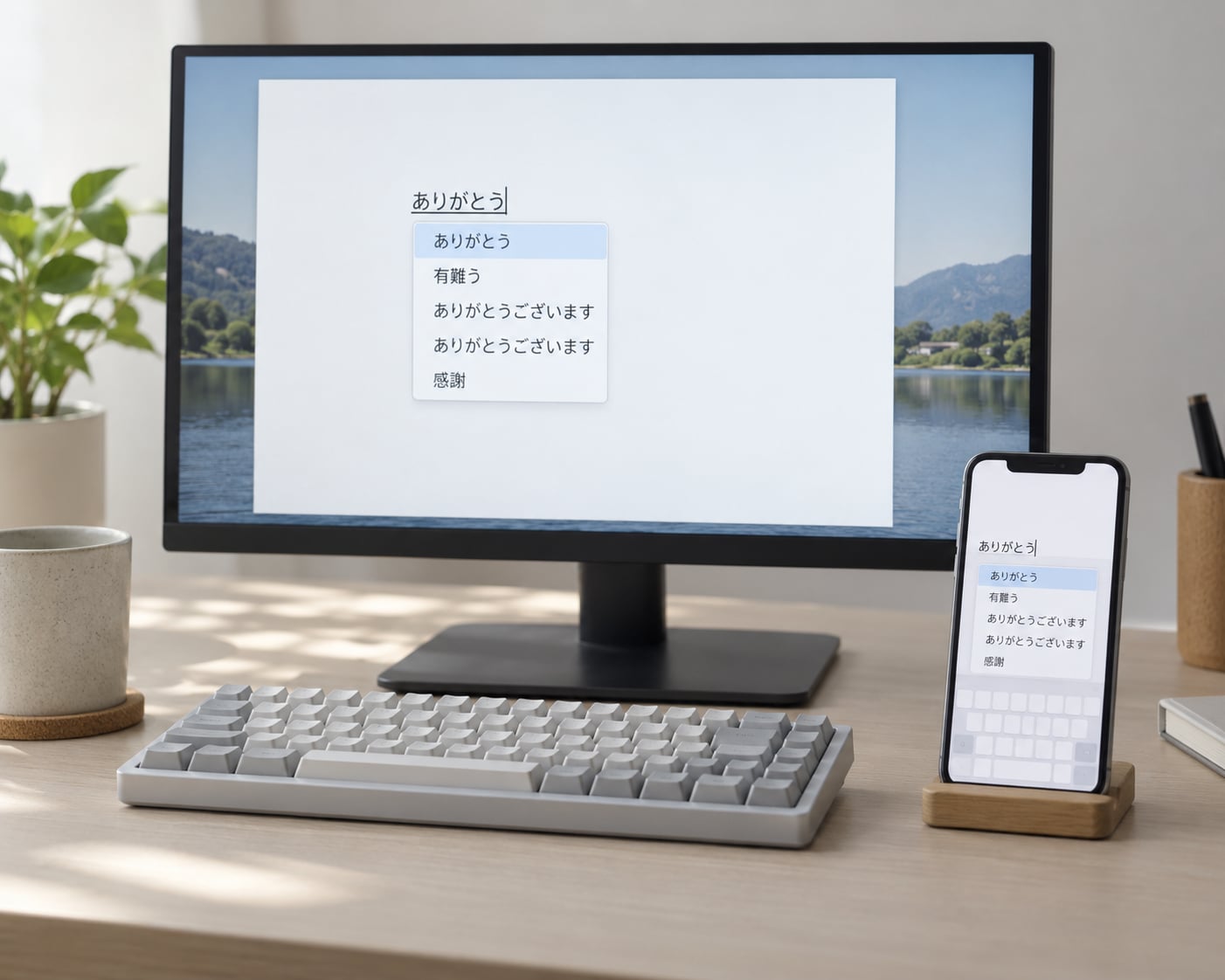
Readings are also not the only problem. The same kana can spell several entirely different words, and only the surrounding context says which one you meant. This is why shiteimasu becomes しています and not 市政します, and why an IME that guessed wrong produces text that still looks like valid Japanese.
For a learner, the effect is bigger than the keystrokes. You have to already know a kanji’s readings to predict the candidate you want, so reading knowledge and typing speed feed each other. Small characters are a good example: 小 is read shou in 子供 (child) but chii or ko in 小さい (small) and 小柄 (petite). Typing shou gives you a list where 小 is not obviously the right one.
How Japanese IME Conversion Works From Keystroke to Committed Text
A Japanese IME runs four stages, and every Japanese typing quirk makes sense once you can name the stage it happens at.
The four stages of a kana-kanji conversion
- Romaji buffer. The IME holds raw letters until it is sure the syllable is finished. This is why nn waits for the next key, and why n can be either ん or the start of な.
- Kana buffer. Completed syllables appear as a provisional hiragana string in an unconverted buffer, with a thin or thick underline. Nothing is fixed yet.
- Segmentation and candidates. The IME splits that kana into phrases and offers a conversion candidate list for the first segment. Arrow keys or number keys move through it.
- Commit. Pressing Enter, or the conversion key, fixes the chosen text and moves to the next segment. Only now is anything final.
A worked example: one sentence, keystroke by keystroke
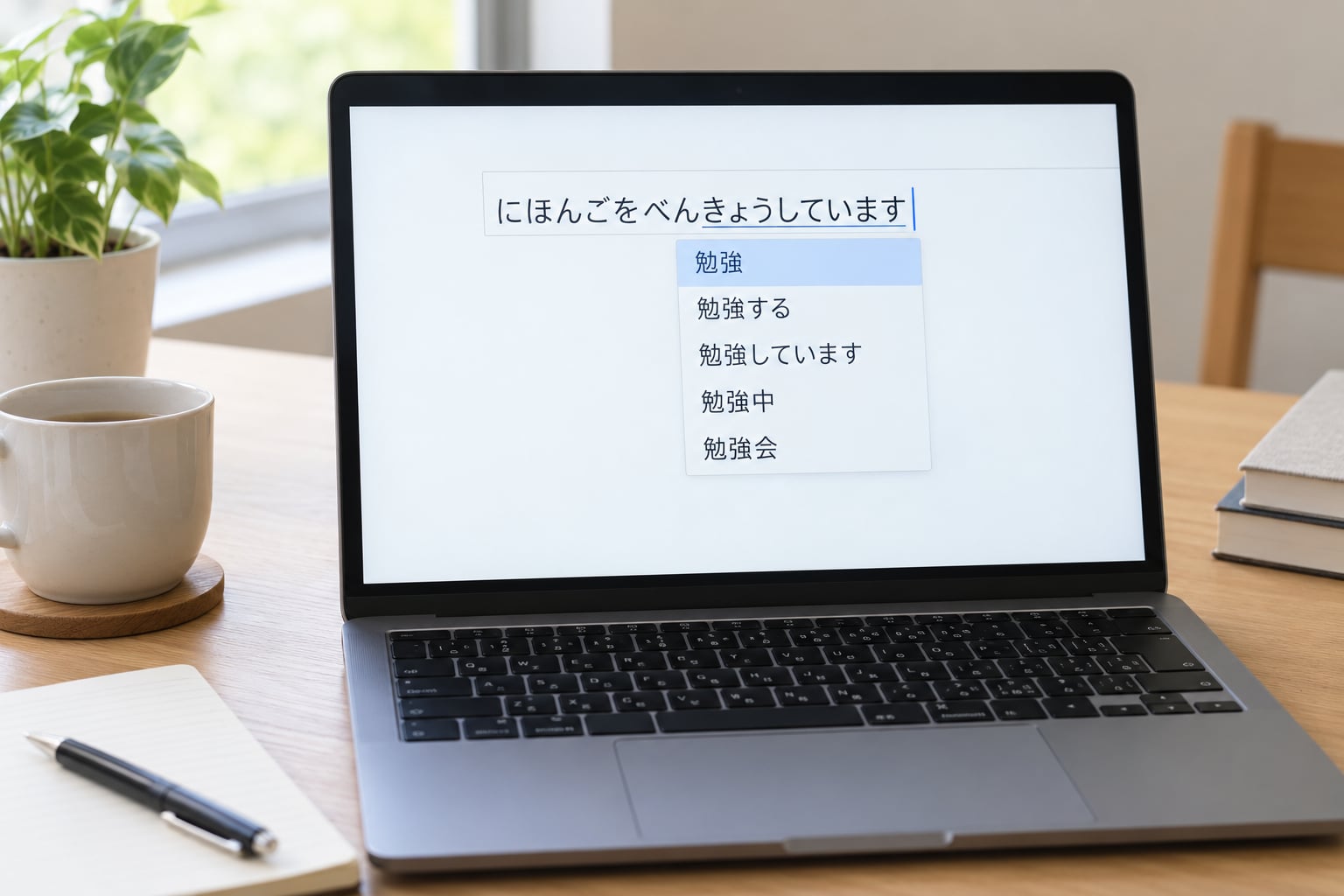
Here is 日本語を勉強しています, with the romaji keystrokes counted. It is a plain sentence with no unusual words, and it still costs 27 letter keystrokes plus conversions.
- nihongo (7 keys) becomes にほんご, which converts to 日本語. One space, one commit.
- wo (2 keys) becomes を. Usually left as kana.
- benkyou (7 keys) becomes べんきょう, which converts to 勉強. Again one space, one commit.
- shitteimasu (11 keys) becomes しています. The doubled t produces the small っ; typing a single t here would have started a different syllable.
That is 27 letters for five words. Compare the English equivalent, “I study Japanese”, which is 16 characters including spaces. Add the two space presses that triggered conversion and you are at 29 keystrokes for a sentence a native reader absorbs instantly.
Geminate consonants, punctuation and the half-width toggle
The doubled tt above is a geminate consonant. The same problem shows up as kk, ss and nn: ippai (一杯), issai (一切) and ippon (一本). The IME cannot resolve them from one letter, so it stalls until you supply the second.
Punctuation adds its own layer. 、 and 。 are not on the keyboard, so they are typed as to and ka and then converted, with a leading comma or full stop added automatically. Japanese also distinguishes full-width Latin (A) from half-width (A), and a stray press of the conversion modifier can flip everything you typed into half-width alphanumerics.
The good news: nothing above is forced. Direct kana input skips stages three and four entirely, and flick input on a phone skips stage one.
Typing Kana Is Not the Same as Communicating
Counting keystrokes understates the problem, because the cost is not symmetric. With English, the work of turning sound into text happens before you touch the keyboard. With Japanese kanji, part of that work happens during writing, which is why typing a message in Japanese takes longer than speaking or reading the same message.
Three things push the error rate up. Segment boundary errors happen when the IME splits a kana string at the wrong point. Homophone errors happen when several words share a reading and the machine picks a different valid one. And okurigana errors happen when kana that should have stayed kana get pulled into a kanji spelling.
The nastiest case is the silent one. If you meant 向上 but the candidate list settled on 提高, both are valid words and both read koujou, so the text still looks grammatical and you may not notice until a Japanese speaker reads it. Learners report this more than native typists do, because learners often cannot check the reading visually either.
Now the other side of the ledger. Kanji mark word boundaries inside an unspaced language, and a sentence with kanji is often shorter than the same sentence in kana alone. 日本語を勉強しています is 11 characters; the all-kana version にほんごをべんきょうしています is 14. For readers, kanji are a compression format, and removing them would make reading slower even though typing would get simpler.
That is also why kanji use is not really declining. Romanised text appears online and in messaging, but printed material, signage, legal documents, novels and business writing stay overwhelmingly kanji-based. The friction you feel is the cost of a script that rewards the reader, not a design mistake.
Why Kanji Creates More Cognitive Load for the Writer
Separate the two jobs people blur together. Reading a kanji you already know is fast. Producing one from a sound is a decision, and writing a message means making one of these decisions for every content word in it.
- Recall the reading. You need the on’yomi or kun’yomi, not just the meaning.
- Recall the spelling. Several kanji can carry the same reading, so you need the specific one.
- Predict the candidate. To press space once instead of three times, you need to know what the IME will show.
- Validate the result. You have to check that the committed text says what you meant.
- Recover from errors. A wrong guess means backing up, re-converting, and re-checking the rest of the clause.
Steps one to three are the part that shrinks with practice. Step four is the one that never fully goes away, because a candidate list can be plausible and wrong at the same time.
Predictive conversion helps most where vocabulary is frequent and hurts most where it is rare. If you type the same company name or the same greeting a hundred times a week, the IME learns it and you stop looking. Type a specialised term once, and you are reading a candidate list with no prior knowledge to filter it with.
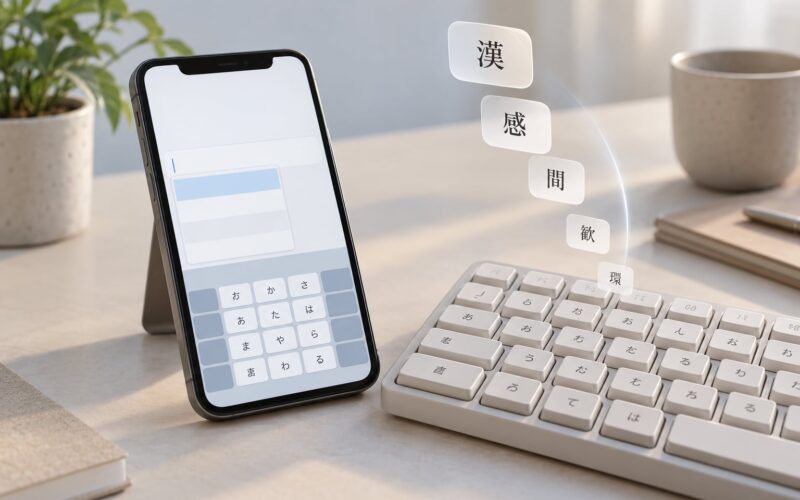
Mobile input shifts the load rather than removing it. A flick keyboard removes romaji entirely, but each kana is picked from a 3×3 or 5×5 grid, and kanji conversion on a phone is often worse, because the candidate list is small and the screen is short. Learners on phones frequently report a slower first draft, even though the keystroke count per syllable is one.
What Makes Kanji Input Faster in Practice
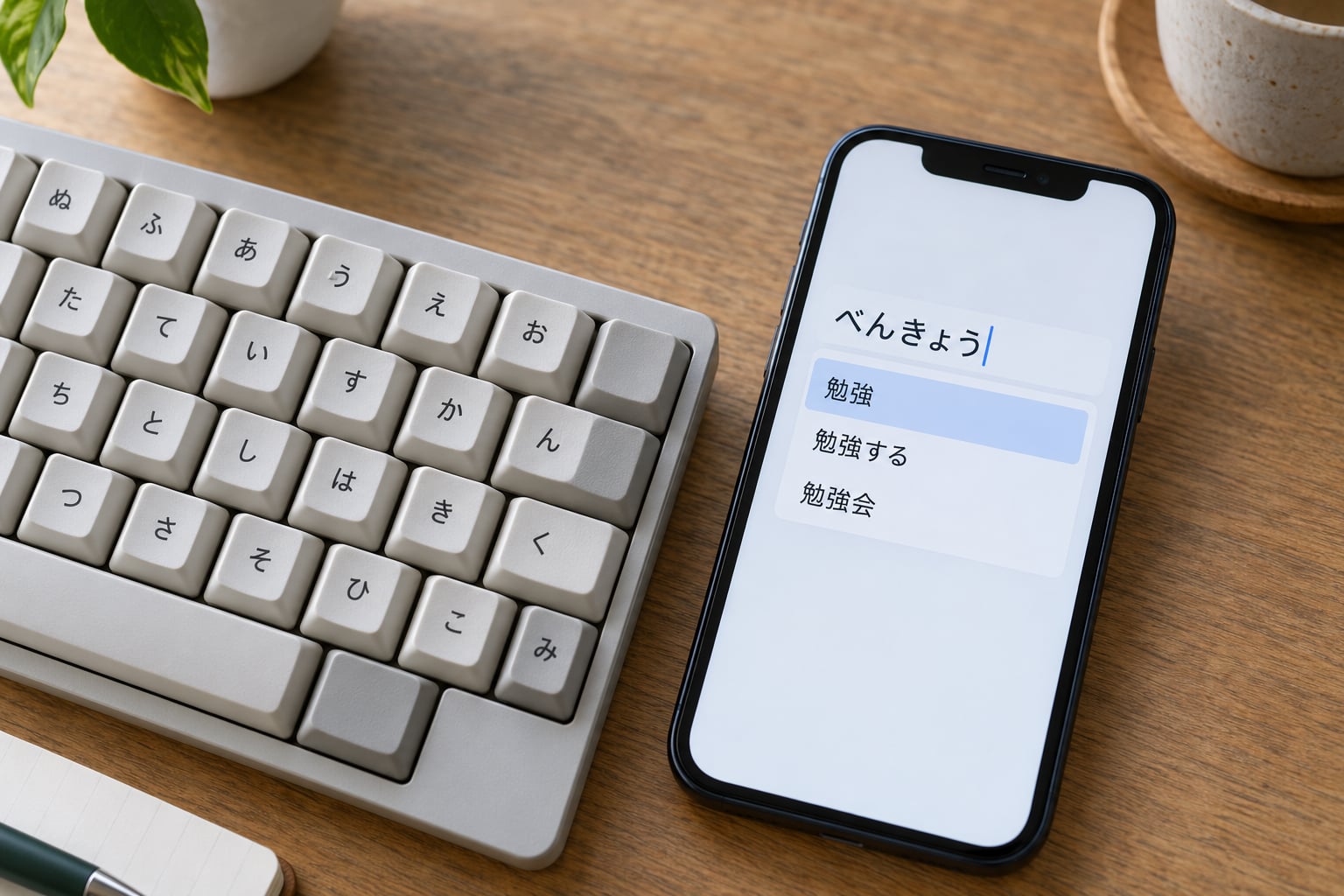
The gains come from removing keystrokes, not from typing harder. Three input methods behave very differently, and the right answer depends on whether you are on a desk or a phone.
| Input method | Keystrokes per syllable | Learning curve | Best for |
|---|---|---|---|
| Romaji (US or UK layout) | 1 to 3, plus an extra key for double consonants | Lowest, if you already touch type | Learning, travel, any Latin keyboard |
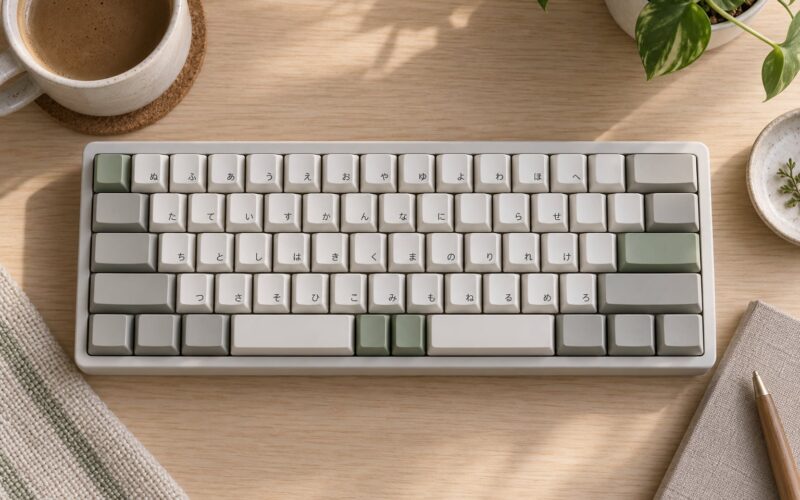
| Direct kana (JIS layout) | Exactly 1 | High, hundreds of keys in fixed positions | Fast native-level writers on a desk |
| Flick or 12-key (phone) | 1 to 3 taps per kana | Low to start, moderate for fast typing | Phones, tablets, short messages |
Direct kana input is genuinely faster, one keystroke per syllable with no conversion to confirm for the kana themselves, which is why experienced Japanese typists on desktop keyboards learn a JIS layout. The catch is brutal: 変換 and 無変換 alone sit on dedicated keys, and every kana is at a fixed coordinate you have to memorise. Romaji is much kinder to a learner and much slower in the middle of a sentence.
Which key does what on each platform
Defaults differ by platform, and every one of them can be remapped in settings, so check yours before taking a shortcut as gospel.
| Action | Microsoft IME and Google Japanese Input | macOS Japanese IME |
|---|---|---|
| Turn Japanese input on or off | Ctrl + Space | Control + Space, or Option + Space in older setups |
| Convert the current segment | Space | Space |
| Commit and move on | Enter | Enter |
| Next candidate | Tab or the Down arrow | Tab or the Down arrow |
| Force hiragana / katakana / alphanumeric | F6 / F7 / F9 | Control + J / K / L |
Five habits that measurably cut typing time
- Learn ten conversion keys and stop hunting. Convert, commit, next candidate, force hiragana, cancel. Muscle memory on those five keys is the single biggest speed gain for a learner.
- Let the IME learn your fixed phrases. Greetings, dates, your name, your address. Anything you type twice is worth registering so the top candidate is right the first time.
- Type whole phrases before converting. The longer the unconverted buffer, the better the segmentation and the more accurate the first candidate.
- Use number keys to pick candidates. Reaching for the first four digits is usually faster than arrowing down a long list.
- Learn the kanji you already read. Knowing that 生 is sei in 学生 is worth more than any shortcut, because it cuts steps one to three of the cognitive load at once.
On Windows, if Japanese input has disappeared entirely, the usual cause is that the Japanese keyboard layout is not installed in Settings, Time and Language, Language options, or that the IME has been switched to an alphabetic input mode. A “Japanese IME is not ready yet” error usually means the input method is still starting up, or that another app is holding a shortcut the IME needs.
Fixing the stuck-in-English case is usually one keystroke: the IME toggle. On Windows it is Ctrl + Space, on macOS it is a Control or Option combination depending on your input source settings, and on Android and iOS it is the globe or 地球 icon in the bottom-left corner of the keyboard.
Frequently Asked Questions
Do Japanese people type romaji?
Most Japanese office workers type romaji on a standard keyboard, because romaji works on any layout and most company PCs are not JIS. Experienced typists and anyone who types at speed for a living often learn direct kana input, where each kana is one fixed key. Younger users type on phones, where flick input replaces romaji entirely. So the answer depends on the person: romaji for convenience, kana for speed.
Why does my Japanese IME pick the wrong kanji?
Because the IME converts sound, not meaning. When several words share a reading, it picks the most common one for the reading alone or for the surrounding phrase, and it can guess wrong. A wrong segment boundary also produces a valid but incorrect word. The fix is to convert longer phrases rather than single words, so the IME has more context, and to check the highlighted segment before you commit it.
What does the IME convert first: romaji, kana or kanji?
It converts romaji into kana first. Keystrokes sit in a romaji buffer until the syllable is complete, then they become a provisional hiragana string in the unconverted buffer. Only when you press the conversion key does the IME segment that kana and offer kanji candidates, and only when you press Enter does the text become final. Each stage can be edited separately, which is why backspace and arrow keys behave unusually.
Is romaji input slower than kana input?
Yes, clearly. Direct kana input costs one keystroke per syllable, while romaji costs up to three, plus an extra keystroke for double consonants like tt, kk and nn. Romaji then adds a conversion press per segment and any keystrokes needed to correct a wrong candidate. Kana input has a far steeper learning curve because the key positions are arbitrary, so for the first year of study romaji is usually the faster option overall.
Why don’t Japanese get rid of kanji, and is kanji use declining?
Kanji make Japanese faster to read. They mark word boundaries in a language that has no spaces, and they compress sentences, so an all-kana text takes more characters to say the same thing. Kanji use is not really declining: novels, signage, legal documents and business writing remain overwhelmingly kanji-based, and chat and social media already lean heavily on kana. What has changed is that input became easier, not that the script is disappearing.
Which is harder to learn, hiragana or katakana?
Hiragana is harder, and it is the one you learn first. It has more irregular sounds, including the single kana ん, which behaves differently depending on the consonant before it. Katakana reuses the same shapes and adds no new sound, so it takes days rather than weeks once hiragana is secure. The practical difficulty with both is the keyboard: learning to type either one fluently takes far longer than recognising them on paper.
Conclusion
One cause sits under all of it: Japanese keyboards send sounds, and Japanese writing stores meanings in characters, so every content word needs a guess and a check. Multiple readings, no word spaces and a conversion step per phrase all flow from that gap.
Start with the two things that pay back fastest. Learn the readings of the most common kanji, so the first candidate is usually the one you want, and practise real conversions with a long unconverted buffer rather than word by word. Get the five conversion keys into your fingers this week; everything after that gets easier with use.